Showing posts with label Computer Tips. Show all posts
Computer Tips
Storage Devices (HDD, CD, DVD, Flash Drive Etc)
Antero Technology Group
September 15, 2018
Most common components of the Computer
How many Components we need to build a Computer System be listed in bellow.
PC-Case
Primary Memory (RAM)
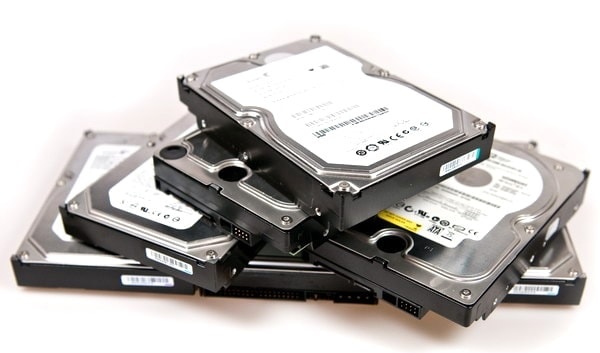
Storage Devices (HDD, CD, DVD, Flash Drive Etc)
Computer Tips
Antero Technology Group
September 15, 2018
What is Personal Computer
A personal computer is a computing device. That is made up of many distinct electronic components and that all functions together in order to accomplish some useful task.
C= Common
O= Oriented
M= Machine
P= Particularly
U= United and used under
T= Technical and
E= Educational
R= Research.
O= Oriented
M= Machine
P= Particularly
U= United and used under
T= Technical and
E= Educational
R= Research.
Computer Tips
Antero Technology Group
September 15, 2018
What is Input Device
Through which device we give the instructions of the computer system is known as Input Device
OR
Input devices are use to give the signal of the computer (CPU) for any tasks
जिस उपकरण के द्वारा कंप्यूटर के CPU को संकेत भेजा या दिया जाता है INPUT DEVICE कहलाता है
Example- Keyboard, Mouse, Joystick, Scanner,
Computer Tips
Antero Technology Group
September 15, 2018
What is Hardware
Understand about the Computer Hardware
The all physical parts and components of the computer system is known as hardware.
कंप्यूटर के वह पार्ट व् भाग जो भौतिक अवस्था में होते है या वह पार्ट जिन्हे छुआ जा सकता है हार्डवेयर कहलाते है
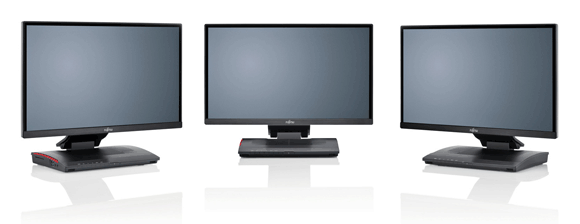
Examples- Keyboard, Mouse, Motherboard, Hard Disk Drive, CPU, Cabinet, RAM, CD & DVD Writer, Display (CRT Monitor, TFT, LCD & LED)
Computer Tips
आइये सीखे कैसे USB को block करते है ज्यादा से ज्यादा देखें subscribe करें
Antero Technology Group
September 12, 2018
आइये सीखे कैसे USB को block करते है ज्यादा से ज्यादा देखें subscribe करें
Block USB Port using Registry Editing Tool
Follow Step by Step that how to block USB port for restrict use.
Computer Tips
Antero Technology Group
September 11, 2018
Introducing Narrator
Three ways to start and stop Narrator
- Press Windows logo key + Ctrl + Enter together to start Narrator. Press these keys again to stop Narrator. If you're using a previous version of Windows, press Windows Logo Key + Enter together to start and stop Narrator. On many keyboards, the Windows logo key is located on the bottom row of keys, to the left or right of the Alt key.
- Press Windows logo key + Ctrl + N to open Narrator settings, and then use the toggle under Narrator to turn it on.
- On the lower-right corner of the sign-in screen, select the Ease of Access button (or press Windows logo key + U) and then choose Narrator.
Customize Narrator to start automatically before or after you sign in to your PC
- Press Windows logo key + Ctrl + N to open Narrator settings.
- To start Narrator automatically after you sign in, select Start Narrator after sign-in.
- To start Narrator automatically before sign in for all users, select Start Narrator before sign-in for everyone.
https://www.youtube.com/user/skm8609
https://www.facebook.com/anterotechnologygroup/
Computer Tips
Antero Technology Group
September 11, 2018
Use color filters in Windows 10
If it's hard to see what's on the screen, apply a color filter. Color filters change the color palette on the screen and can help you distinguish between things that differ only by color.
- To use a color filter:
- Note: To get to color filter settings in previous versions of Windows 10, select Start > Settings > Ease of Access > Color & high contrast.
enjoy and be happy
Subscribe to:
Posts (Atom)